MIDI to piano sheet music: a grand-staff example
This teaching MIDI contains a bass part and a higher melody, with both parts written by the author. The example examines how existing notes are placed on a piano grand staff and what the download formats contain. It does not extract accompaniment from a song recording, and two staves do not by themselves establish a finished arrangement for two hands.
Inspect the actual output
| Check | Observed result |
|---|---|
| Input / output notes | 12 / 12 |
| Exported MIDI voices | 2 |
| Staff split | C4 = MIDI 60 |
| Files | SVG, MusicXML, MIDI, ZIP |
These are downloaded results from the current browser workflow using authored MIDI. They are not real-song transcription accuracy scores or in-game performance validation.
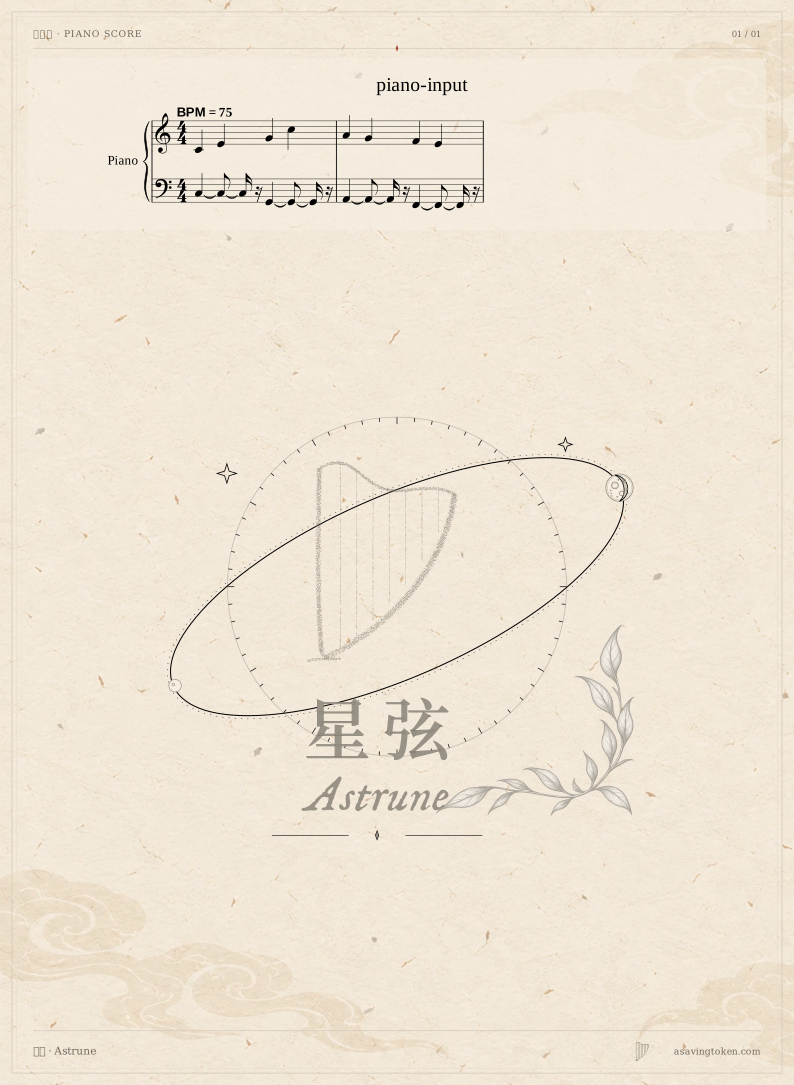
Download the input and results
- piano-input.mid 0.1 KiB
- piano-grand-staff.zip 1066.5 KiB
- piano-grand-staff-score.mid 0.2 KiB
- piano-grand-staff-score.musicxml 25.4 KiB
Try the same workflow
Select English in the workspace language menu to match the button names below.
Confirm that both parts are in the input
Import the original MIDI and open Piano score. Check that the input actually includes both bass and melody, and keep the source file for comparison. If a file contains only a high melody, generation will not invent a left-hand accompaniment. An empty bass staff is not necessarily an error.
Use the split to place the notes
Open Score settings and check the source tempo, meter and Staff split / MIDI (C4 = 60). Choose Generate piano score. Read through each phrase: notes below the split should go to the lower staff, while notes at or above it should go to the upper staff.
Review the notation while listening
Use Hear simulated performance to follow the bass entries, melody and simultaneous notes on the page. The split determines staff placement. Large stretches or a melody that frequently crosses the split still require a playing decision. If you edit notes or change settings, generate the score again before reviewing the new version.
Open each download for its intended use
In Download and save, choose Download score package. Inspect its SVG pages and MusicXML, and check whether it includes MIDI that passed export validation. Download MIDI is also available separately. Import MusicXML into a notation editor for further engraving, or use Print / save as PDF to keep a fixed page layout.
What still needs review
The accompaniment in this example comes from the input MIDI. Generation splits existing notes by pitch; it does not add accompaniment or choose optimal fingering. Synthesized playback helps inspect notes but does not prove that both hands can play them comfortably.
The print action opens the browser's printing workflow; it does not establish that a PDF was saved. Open the downloaded files and review pages, voices and measures. Other applications can lay out notation differently. Back up the project before clearing browser data.
Questions
Does moving the split change a note's pitch?
No. It changes staff placement. To change pitch, use Edit notes, submit the change and generate again.
Why keep both MusicXML and MIDI?
MusicXML supports further notation and layout work; MIDI supports further note-event editing. Neither is an audio recording or a replacement for a complete project backup.